Students
What is a Chromebook? A plain guide for students getting one
Chromebook vs laptop in plain words, and what students can actually do with one.
 By Musa Tariq
Published
Last verified
By Musa Tariq
Published
Last verified
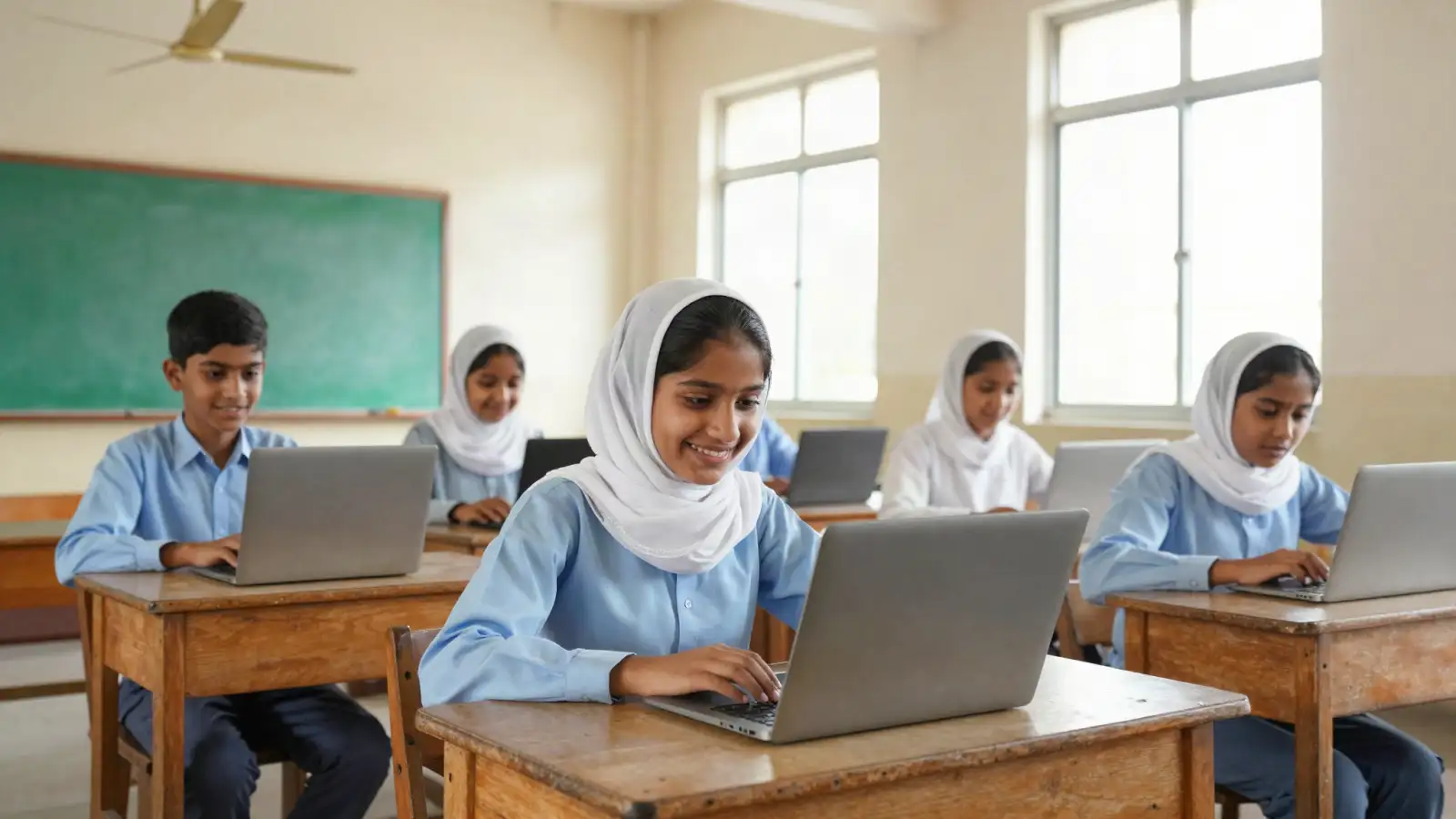
A Chromebook is a laptop that runs ChromeOS, Google’s operating system, instead of Windows. Most of what you do happens in the Chrome browser and Google apps, and your files are saved online in Google Drive. If you are applying for the PM Laptop Scheme, which gives free Chromebooks to top Class 9 students, this short guide explains what a Chromebook is, how it differs from a normal laptop, and what you can do with it as a student.
Chromebook vs laptop: the main difference
On the outside a Chromebook and a Windows laptop look the same. The difference is the operating system. A Windows laptop can install almost any desktop program, such as the full Microsoft Office, Photoshop or heavy coding tools, and it works fully without internet. A Chromebook is built around the Chrome browser and Google’s apps, signs in with a Google account and keeps your work in the cloud. That makes it simpler, quicker to start and less likely to get viruses, but it cannot run Windows programs. For a student whose work is online classes, research, writing assignments and making slides, a Chromebook covers almost everything. For video editing or advanced software, a Windows laptop is still the better tool.
| Chromebook | Windows laptop | |
|---|---|---|
| Operating system | ChromeOS (Google) | Windows (Microsoft) |
| Main apps | Chrome browser, Google Docs, Sheets, Slides, Gmail; Android apps on many models | Any Windows program, for example full MS Office |
| Sign in | Google account | Windows or Microsoft account |
| Without internet | Some things work (see below) | Most installed programs work |
| Best for | Online classes, research, assignments, slides | Heavy software, coding tools, video editing |
What a student can do on a Chromebook
A Chromebook is made for the kind of work most school and college students do every day. You can join online classes on Google Meet or Zoom in the browser, and watch recorded lessons on YouTube or your school’s learning system. You can write assignments in Google Docs, make presentations in Google Slides and keep marks or budgets in Google Sheets, and then download them as Word, PowerPoint or PDF files when a teacher asks. You can search, read and save research for projects, and keep notes in Google Keep. Because everything is saved in Google Drive, your work stays safe if the device is lost or damaged, and you can open it on any other computer or phone by signing in. Under the PM Laptop Scheme, each student also gets an internet device, which makes these online tools usable at home.
Can you use MS Office?
This is the most common question from parents and teachers. According to Google’s Chromebook Help page “Open and edit Office files on your Chromebook”, there are two ways to work with Word, Excel and PowerPoint files. The first is the Microsoft 365 app, which brings Word, Excel and PowerPoint to the Chromebook; you connect it to OneDrive to edit files. The second is to open Office files in Google Docs, Sheets or Slides, which needs no setup but does need internet for this. What you cannot do is install the old Windows version of MS Office from a CD or a downloaded .exe file, because Chromebooks do not run Windows programs. For school assignments, either option is usually enough, and files can be saved back in Office format to share with others.
What works without internet
A Chromebook is happiest online, but it is not useless offline. Google’s Help page “Use your Chromebook offline” says several things keep working without a connection, although some need you to turn on offline mode first while you are still connected. You can read, reply to and search Gmail after turning on offline mail, and messages you send wait in an outbox until you reconnect. You can view, create and edit Google Docs, Sheets and Slides. You can view and edit notes in Google Keep. You can edit photos with the built-in editor, and read web pages you saved earlier. A useful habit is to open Google Drive while you are connected and mark the files you need as “available offline” before you go somewhere with weak signal.
First-day tips for students
A few minutes of setup on the first day will save trouble later. Sign in with your own Google account and set a strong password that only you and a parent know, because the account holds all your school work. Keep your assignments in Google Drive rather than only on the device, so they are safe if it breaks. Install apps only from the Chrome Web Store or Google Play Store, and avoid “free” downloads from unknown websites. Do not share the Chromebook’s Google account with friends, and do not sell or lend a device given under a scheme, because it is meant for your own studies. Finally, keep the charger and the internet device together, and charge the Chromebook overnight so it is ready for the school day. For more on the scheme itself, read the PM Laptop Scheme 2026 guide; university students can compare it with the CM Punjab Laptop Scheme.
Questions about Chromebook
Can I use MS Word on a Chromebook?
Not the normal Windows version. Google’s help page says you can open and edit Word, Excel and PowerPoint files with the Microsoft 365 app (connected to OneDrive), or with Google Docs, Sheets and Slides.
Does a Chromebook work without internet?
Partly. Google’s help page says you can read and write Gmail offline after turning on offline mail, edit Google Docs, Sheets and Slides, view and edit Google Keep notes, and edit photos.
Do I need a Gmail account to use a Chromebook?
You sign in with a Google account to use it fully. If you do not have one, you can create it during setup. Use your own account, not a shared one.
Which Chromebook model will the PM Laptop Scheme give?
No official model or specification has been published. We will add it to our PM Laptop Scheme guide when it is.
Where the Chromebook facts come from
- Google: Chromebook Help (Use your Chromebook offline) (checked 27 Oct 2026)
- Google: Chromebook Help (Open & edit Office files on your Chromebook) (checked 27 Oct 2026)
We read each official page ourselves on the date shown. News reports are used only to find leads and are labelled when we mention them.